


Universal Analytics gave you three fields for every event: Category, Action, and Label. It was rigid, confusing, and led to wildly inconsistent tracking across teams. GA4 threw all of that out. Instead, GA4 event tracking treats everything as an event — pageviews, clicks, scrolls, purchases — with flexible parameters attached to each one.
If you’ve been struggling with the transition, you’re not alone. However, once you understand GA4’s event model, you’ll wonder why Google didn’t make this change sooner.
How GA4 Events Differ from Universal Analytics
In Universal Analytics, you had distinct hit types: pageviews, events, transactions, social interactions, and more. Each had its own data model. Events specifically required a Category, Action, and optional Label — a structure that seemed logical at first but quickly became a mess in practice.
GA4 simplifies this entirely. There’s only one hit type: events. A pageview is an event called page_view. A purchase is an event called purchase. A button click is whatever you name it. Every event can carry up to 25 custom parameters, giving you far more flexibility than the old three-field system.
| Feature | Universal Analytics | GA4 |
|---|---|---|
| Hit types | Multiple (pageview, event, transaction, etc.) | Events only |
| Event structure | Category / Action / Label / Value | Event name + parameters |
| Custom parameters per event | None (fixed fields) | Up to 25 |
| Pageview tracking | Separate hit type | page_view event |
| E-commerce | Separate module | Built-in event parameters |
This means you no longer need to force your data into arbitrary boxes. Instead, you describe what happened with a clear event name and attach meaningful details as parameters.
The Four Types of GA4 Events
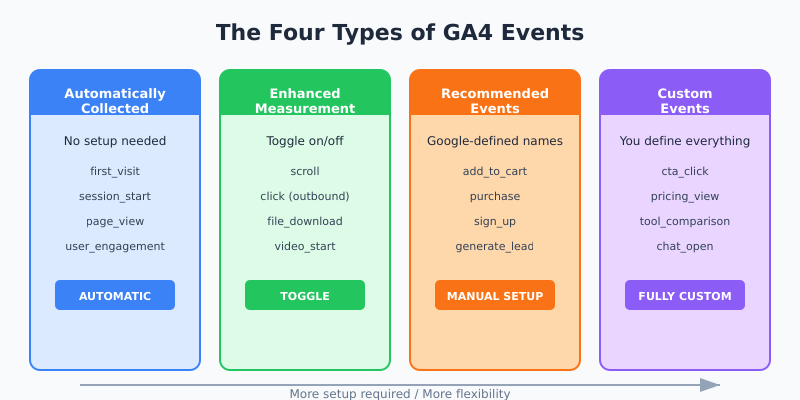
GA4 organizes events into four categories based on how they’re created and managed. Understanding these categories is essential for building a clean tracking setup.
1. Automatically Collected Events
These fire as soon as you install the GA4 tag. You don’t configure anything. They include first_visit, session_start, page_view, and user_engagement. Essentially, GA4 handles the basics for you right out of the box.
2. Enhanced Measurement Events
These are also automatic, but you can toggle them on or off in your property settings. They cover common interactions that most websites want to track. More on these in the next section.
3. Recommended Events
Google provides a list of recommended events with predefined names and parameters. For instance, e-commerce sites should use add_to_cart, begin_checkout, and purchase. These events unlock special reports and integrations in GA4. Therefore, always check the recommended list before inventing your own event names.
4. Custom Events
When none of the above cover what you need, you create custom events. These are completely flexible — you define the name and the parameters. However, they don’t trigger special reports in GA4, so use them only when necessary.
How Enhanced Measurement Works
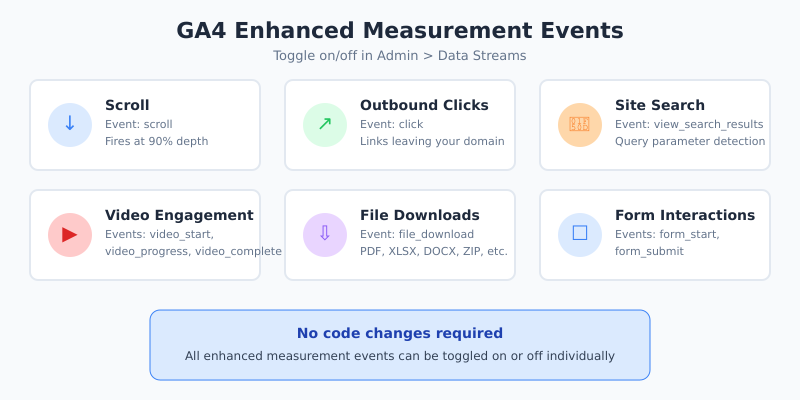
Enhanced measurement is one of GA4’s best features. It automatically tracks common user interactions without any code changes or tag manager setup. You simply toggle the options in your GA4 property under Admin > Data Streams > Enhanced Measurement.
Here’s what enhanced measurement captures:
- Scroll tracking — fires a
scrollevent when a user reaches 90% of the page depth - Outbound clicks — tracks
clickevents when users leave your domain - Site search — captures
view_search_resultswhen users search your site - Video engagement — records
video_start,video_progress, andvideo_completefor embedded YouTube videos - File downloads — logs
file_downloadwhen users click links to documents, spreadsheets, presentations, or compressed files - Form interactions — tracks
form_startandform_submitevents
The beauty of enhanced measurement is that it works immediately. For many small to medium websites, these automatic events cover 80% of what you’d want to track. In my experience, businesses often spend weeks configuring custom tracking for interactions that enhanced measurement already handles.
Before creating any custom event, check whether enhanced measurement already tracks it. You’ll save yourself significant implementation time.
Creating Custom Events in the GA4 Interface
For simpler tracking needs, you can create custom events directly in GA4 without touching code. This approach works well when you want to create an event based on conditions of existing events.
Here’s how to do it:
- Go to Admin > Events > Create Event
- Click Create
- Name your event (follow GA4 naming rules)
- Set matching conditions — for example, trigger when
event_nameequalspage_viewANDpage_locationcontains/thank-you - Optionally modify parameters
- Save the event
This method is ideal for creating conversion events from pageviews. For instance, you could track a “thank you” page visit as a generate_lead event. Consequently, you get meaningful conversion data without any developer involvement.
That said, the GA4 interface has limitations. You can only create events based on existing event data, and the logic is limited to simple conditions. For more complex tracking, you’ll need Google Tag Manager.
Creating Custom Events via Google Tag Manager
Google Tag Manager (GTM) remains the most powerful way to implement custom GA4 events. It gives you full control over when events fire, what parameters they carry, and how they interact with your site.
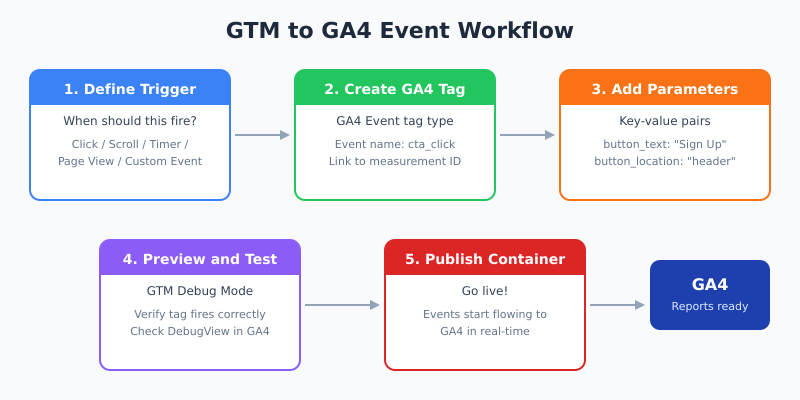
The basic workflow:
- Create a GA4 Event tag in GTM
- Enter your event name (e.g.,
cta_click) - Add event parameters as key-value pairs
- Set a trigger that defines when the event fires (click, scroll depth, timer, etc.)
- Preview and test using GTM’s debug mode
- Publish the container
If you’re new to GTM, our guide to the data layer in Google Tag Manager explains how GTM communicates with your website. Understanding the data layer is fundamental to implementing reliable event tracking.
GTM also supports more advanced triggers — like tracking when a specific element becomes visible, when a user scrolls to a certain percentage, or when a JavaScript variable changes. As a result, you can track virtually any interaction on your site.
Event Parameters and Custom Dimensions
Event parameters are where GA4’s flexibility truly shines. Every event can include parameters that provide additional context. For example, a cta_click event might include:
button_text: “Start free trial”button_location: “hero_section”page_section: “pricing”
However, there’s an important catch. By default, event parameters only appear in the Realtime and DebugView reports. To use them in standard reports, explorations, or audiences, you must register them as custom dimensions or custom metrics.
To register a custom dimension:
- Go to Admin > Custom Definitions > Create Custom Dimension
- Enter the dimension name (how it appears in reports)
- Select the scope (event-level or user-level)
- Enter the event parameter name exactly as sent
- Save
GA4 allows up to 50 event-scoped custom dimensions and 25 user-scoped custom dimensions on standard properties. Google Analytics 360 properties get significantly more. Consequently, plan your parameters carefully — you can’t afford to waste slots on data you’ll never analyze.
For deeper analysis of how these parameters feed into broader tracking strategies, see our article on server-side vs. client-side tracking.
Best Practices for Event Naming Conventions
Naming conventions might sound boring, but they make or break your analytics data. Inconsistent naming leads to fragmented reports and unreliable insights. Here are the rules I follow after years of GA4 implementations:
| Rule | Good Example | Bad Example |
|---|---|---|
| Use snake_case | form_submit |
FormSubmit or form-submit |
| Be descriptive but concise | newsletter_signup |
ns or user_signed_up_for_newsletter_from_homepage |
| Use verb_noun format | download_pdf |
pdf or pdf_downloaded |
| Avoid special characters | add_to_cart |
add-to-cart! |
| Keep it under 40 characters | video_play |
user_clicked_play_button_on_video_player |
Additionally, document every event in a shared spreadsheet or tracking plan. Include the event name, parameters, trigger conditions, and who requested it. In fact, I’ve seen more tracking implementations fail from poor documentation than from technical issues.
Create a tracking plan document before you implement anything. List every event, its parameters, and its purpose. Your future self will thank you.
Also, stick to Google’s recommended event names whenever possible. These integrate with GA4’s built-in reports and machine learning features. Only create custom event names when the recommended list doesn’t cover your use case.
Common Mistakes to Avoid
After helping dozens of businesses set up GA4 event tracking, I see the same mistakes repeatedly. Here’s what to watch out for:
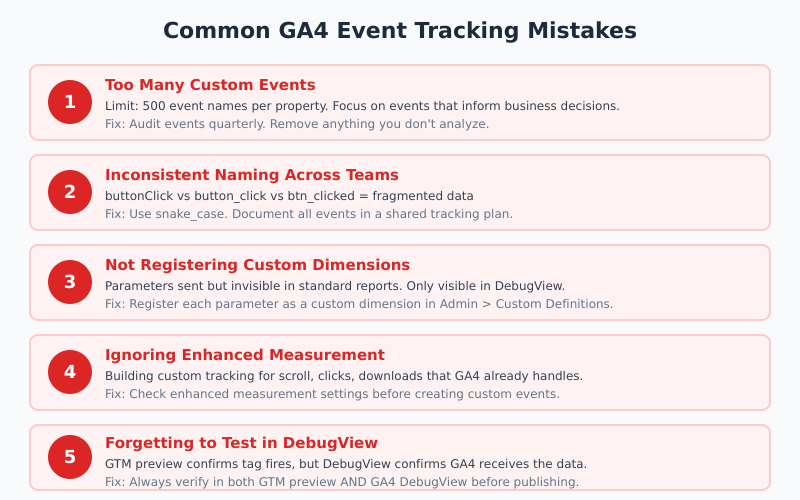
Too Many Custom Events
GA4 allows up to 500 distinct event names per property. That sounds generous, but teams that track every micro-interaction quickly hit analysis paralysis. If you’re tracking 200+ events, you’re probably not analyzing most of them. Focus on events that directly inform business decisions.
Inconsistent Naming Across Teams
One developer uses buttonClick, another uses button_click, and marketing creates btn_clicked. Now you have three events tracking the same thing. Similarly, inconsistent parameter values (“US”, “United States”, “usa”) fragment your data. Establish naming conventions early and enforce them.
Not Registering Custom Dimensions
This trips up nearly everyone. You send beautiful event parameters through GTM, then wonder why they don’t appear in your reports. Remember: parameters must be registered as custom dimensions before GA4 surfaces them in standard reports.
Ignoring Enhanced Measurement
Don’t reinvent the wheel. Enhanced measurement already tracks scrolls, outbound clicks, file downloads, and more. Check what’s available before building custom solutions. Otherwise, you’ll end up with duplicate data that skews your reports.
Forgetting to Test
Always verify events in GA4’s DebugView before going live. GTM’s preview mode shows whether tags fire, but DebugView confirms that GA4 actually receives and processes the data correctly. These are two different things, and skipping either one is a recipe for data quality issues.
Putting It All Together
GA4’s event-based model is a genuine improvement over Universal Analytics. The old Category/Action/Label structure was limiting and confusing. GA4 gives you a flexible, parameter-rich system that can describe virtually any user interaction.
Here’s a practical approach to get started:
- Enable enhanced measurement — it covers the basics automatically
- Check recommended events — use Google’s predefined names for common actions
- Create a tracking plan — document every custom event before implementing
- Set up custom dimensions — register parameters you need in reports
- Test everything — use DebugView to verify data flows correctly
For a broader understanding of what metrics actually matter for your business, our guide to the top 5 website metrics for non-techies provides excellent context. And if you’re tracking conversion funnels, GA4’s event model makes funnel configuration significantly more intuitive than it was in Universal Analytics.
The key is starting simple. Track what matters, name it consistently, and expand only when you have a clear reason to do so. GA4 event tracking doesn’t need to be complicated — it just needs to be intentional.